Kiln Firing Basics

Genesis Makes Programming Bisque & Glaze Profiles Easy!

Program and save custom bisque or glaze firings on the Genesis controller with just a few quick steps.

Kiln
Greenhouse
Bartlett
Tips & Tricks
By
Bartlett Instrument Team
on
July 16, 2016
No items found.

Programming and Saving Custom Bisque or Glaze Firings on the Genesis Controller

Programming a custom bisque or glaze firing on the Genesis controller is a simple process. Once you create and save your preferred settings, you can easily reload them later—so switching between bisque, glaze, or any other custom program is fast and repeatable.
No items found.

How to Program a Bisque Firing on the Genesis

Follow these steps to load and customize a bisque program:

  1. From the Home Screen, press the LOAD button.
  2. Select 1-Bisc. A confirmation screen will appear stating the program has been loaded.
  3. Press OK to return to the Home Screen.
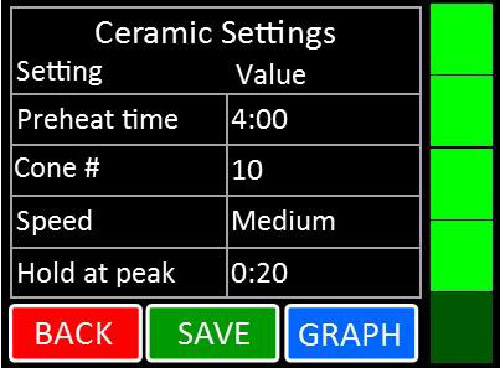
  4. Press EDIT to view and adjust the program settings.
    You can modify:
    • Preheat Time
    • Cone #
    • Speed
    • Hold at Peak
    • Cooling
  5. When finished, press SAVE. The controller will return to the Home Screen.

Switching Between Programs

When you move from a bisque to a glaze or another custom firing, your bisque settings will remain saved and ready to load again later. This ensures consistency across firings and saves time in your workflow.

Learn More About the Genesis Controller

For more information on using the Genesis controller, check out the tutorial videos on our YouTube channel.

No items found.
No items found.
No items found.
No items found.

We pride ourselves in quality products & service.

More Greenhouse News

More Kiln News

View All